JIRA Configuration
Connect Sheet Sync to your JIRA Cloud instance.
The JIRA Configuration panel is where you set up and manage your connection to JIRA. Sheet Sync connects directly to JIRA using your credentials — no JIRA administrator installation is required.
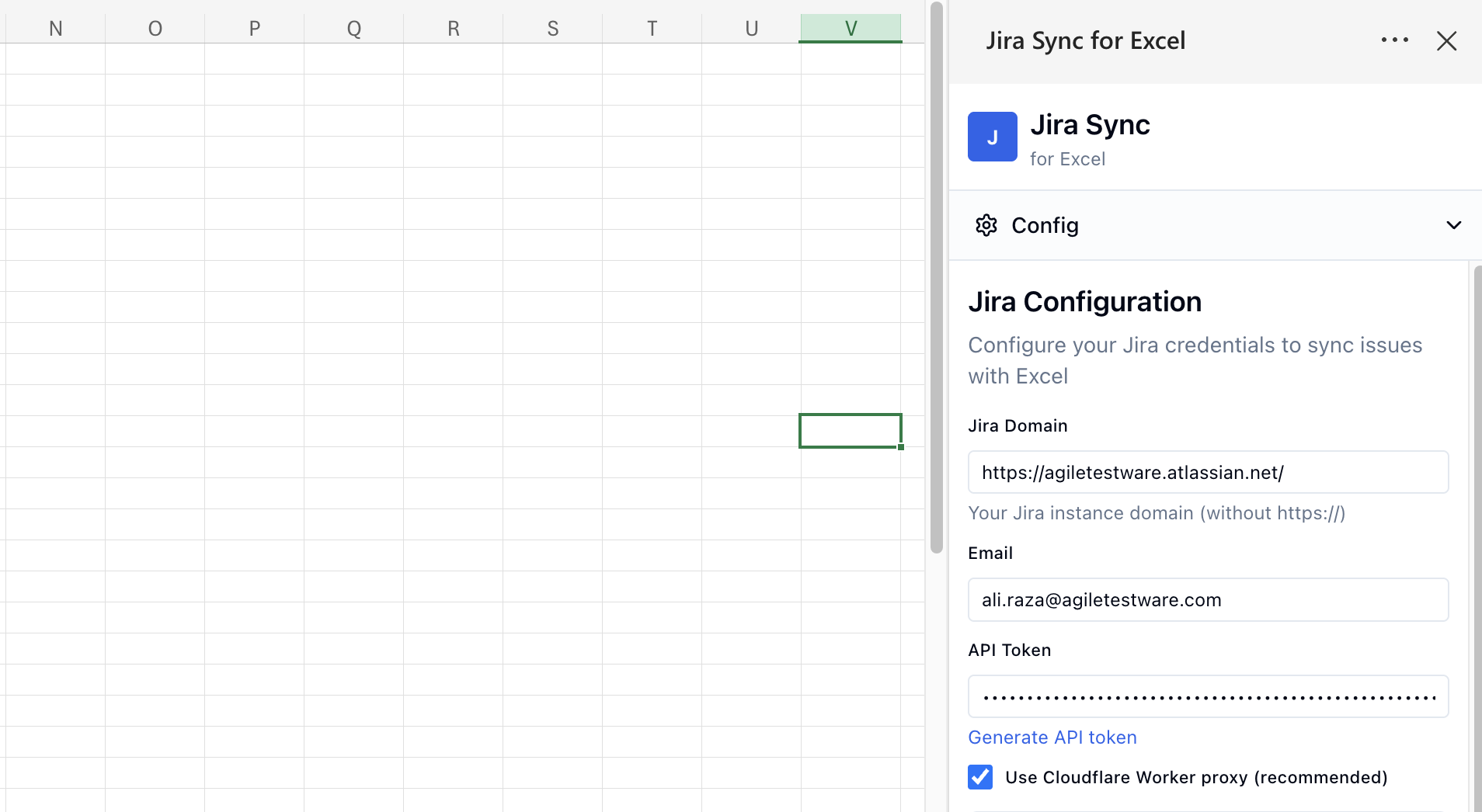
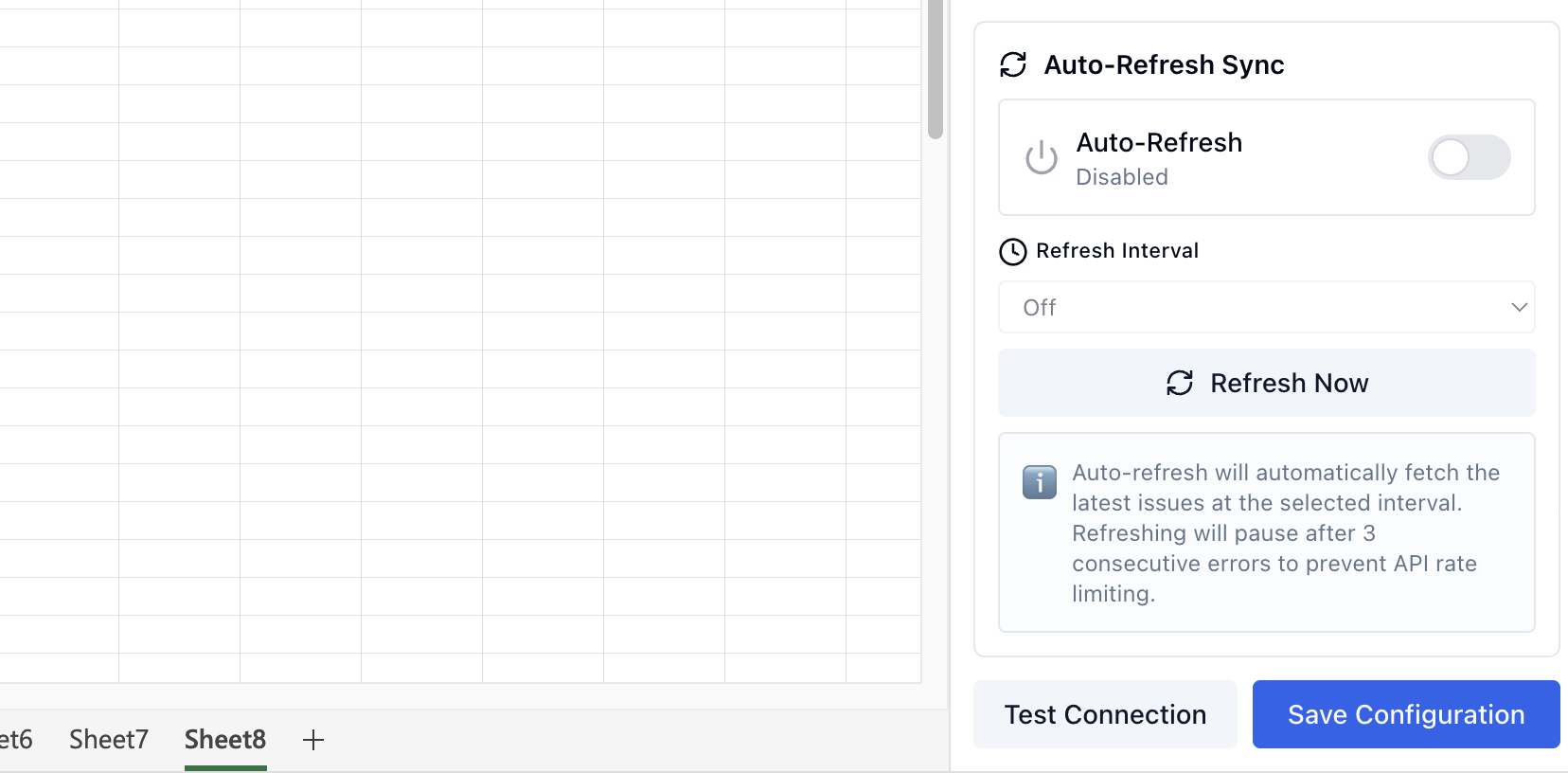
Connecting to JIRA Cloud
- Open the Sheet Sync sidebar and click JIRA Configuration.
- Enter your JIRA Cloud URL (e.g.,
https://yourcompany.atlassian.net). - Enter your JIRA email address as the api key.
- Generate an API token (see Generate an API token below) and paste it in the API Token field.
- Click Connect.
Connection settings
| Setting | Description |
|---|---|
| JIRA URL | The base URL of your JIRA instance |
| Username | Your JIRA email (Cloud) or username (Server) |
| API Token / Password | API token for Cloud, password or PAT for Server |
Generate an API token
Sheet Sync uses your Atlassian API token to authenticate with JIRA. Follow these steps to generate one.
- Go to Atlassian Account Security.
- Click Create API token.
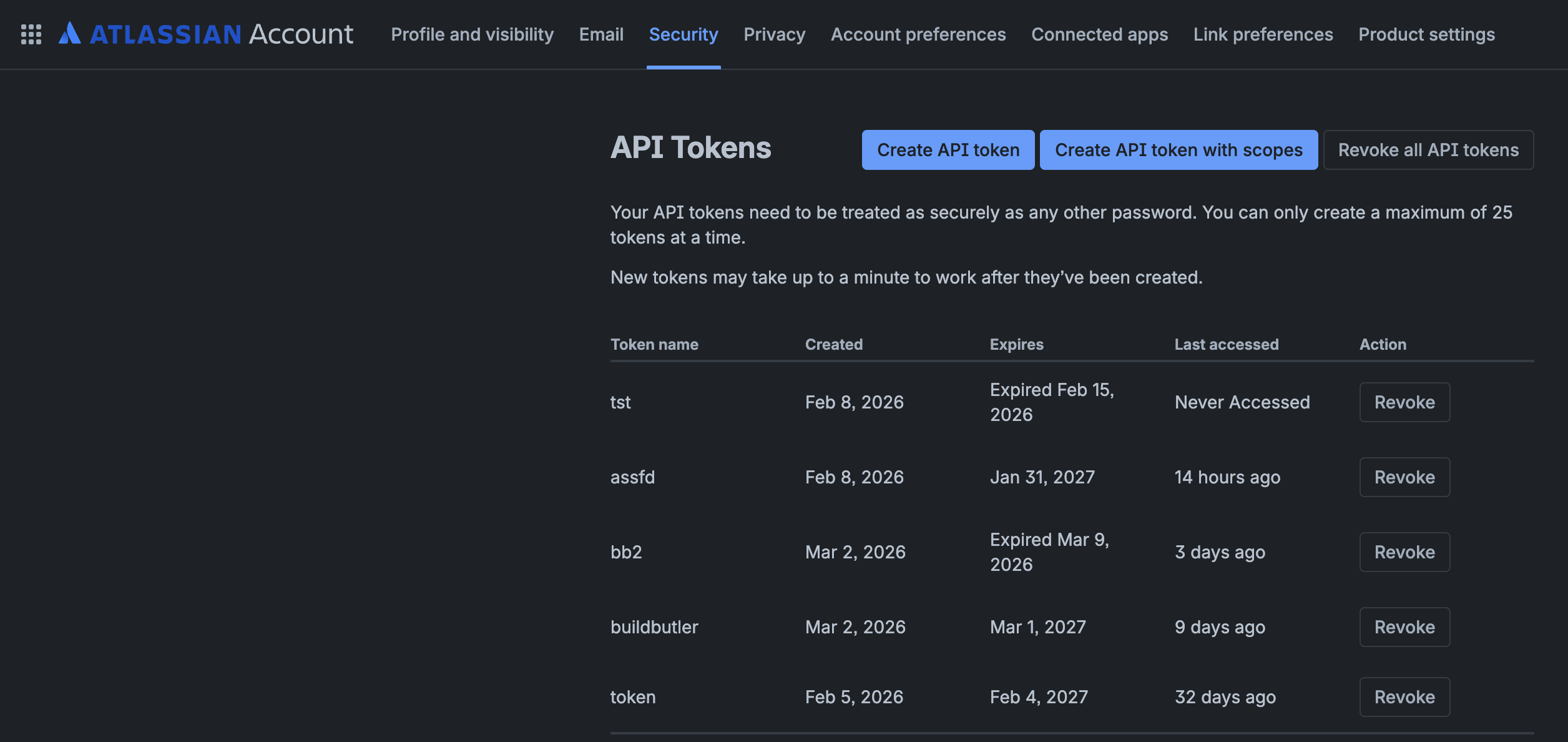
- Give the token a name (e.g.,
sheetsync-api) and set an expiration date. Tokens can last a maximum of one year.
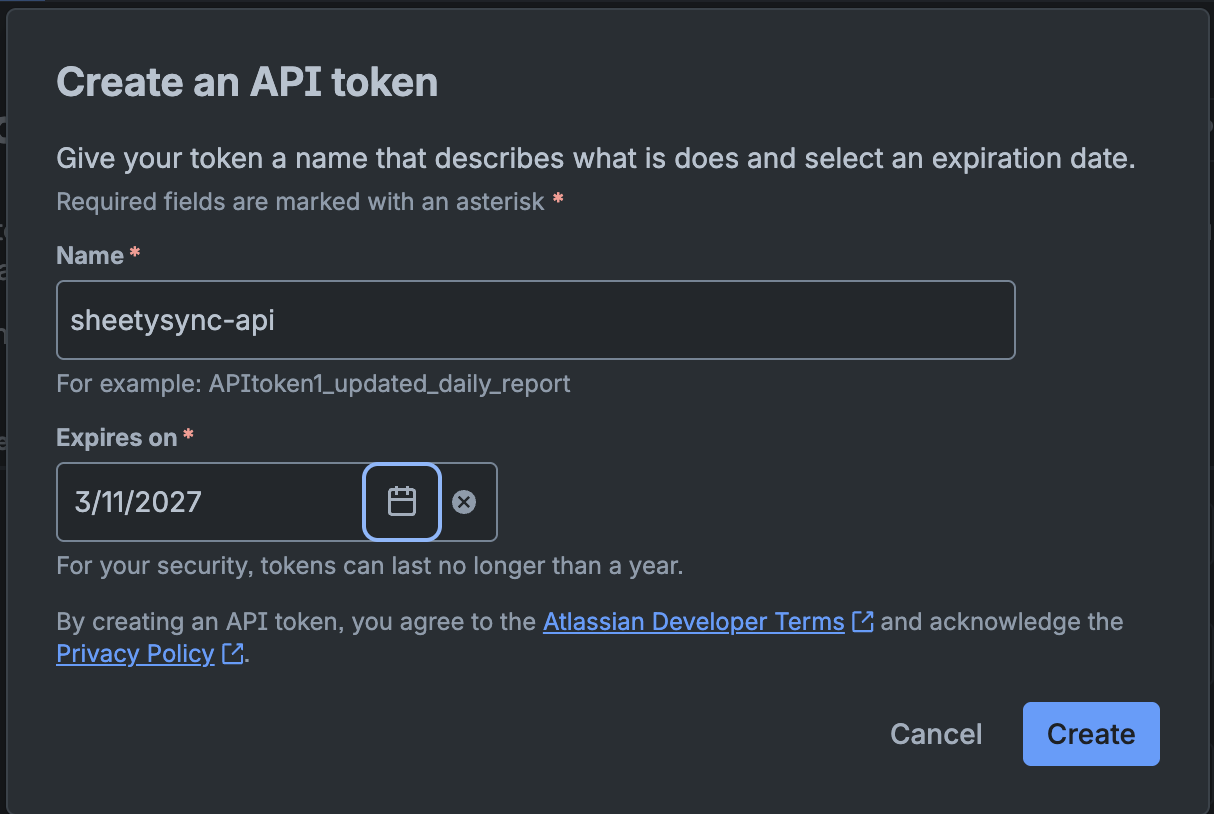
- Click Create, then immediately Copy the token and save it somewhere safe. You cannot recover the token after closing this dialog.
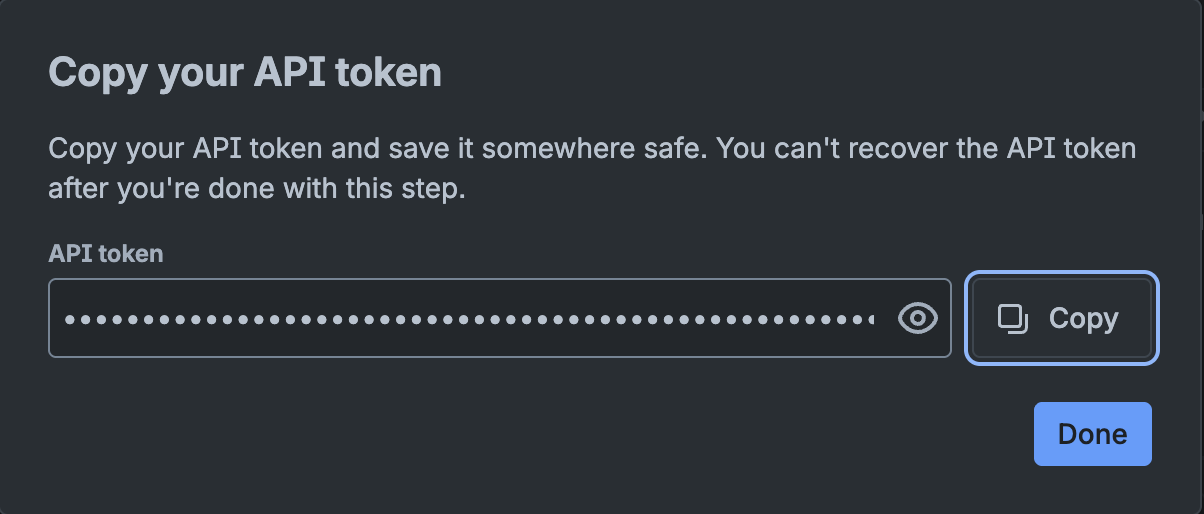
Treat your API token like a password. Anyone with your token can access your JIRA data on your behalf.
Troubleshooting
| Issue | Solution |
|---|---|
| Authentication failed | Verify your username and API token. For Cloud, use your email and an API token — not your password. |
| Cannot reach JIRA | Check that the JIRA URL is correct and accessible from your network. |
| Permissions error | Ensure your JIRA account has permission to view the projects you want to sync. |